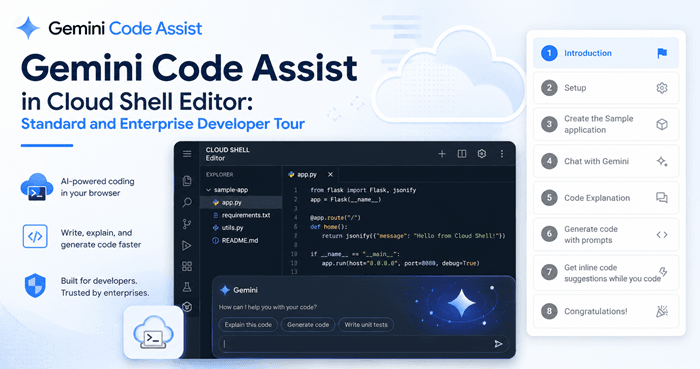
A practical developer-focused walkthrough of Gemini Code Assist Standard and Enterprise inside Google Cloud Shell Editor, covering setup, sample app creation, Gemini Chat, code explanation, prompt-based generation, and inline suggestions.
Gemini Code Assist Cloud Shell Editor Introduction
Gemini Code Assist Standard and Enterprise are designed to help developers work faster inside supported coding environments, including Google Cloud Shell Editor. Instead of switching between documentation, code files, and search tabs, developers can ask questions, generate code, understand existing logic, and receive helpful coding suggestions directly in the development workspace.
This tour follows a simple learning path: introduction, setup, sample application creation, chatting with Gemini, understanding code, generating code with prompts, getting inline code suggestions, and finishing with a complete workflow. For beginners, it is a great way to understand how AI-assisted development works. For professional teams, it shows how Gemini Code Assist can support daily development, cloud learning, debugging, and productivity.
Gemini Code Assist Cloud Shell Editor Setup
The setup stage begins inside Google Cloud. Developers need access to a Google Cloud project where Gemini Code Assist is enabled. Once the environment is ready, Cloud Shell Editor provides a browser-based development workspace where you can open files, run commands, build projects, and use Gemini assistance without installing a full local IDE.
The Standard edition is useful for developers who want AI coding support, chat assistance, code generation, and productivity features with enterprise-grade security. The Enterprise edition includes Standard capabilities and adds advanced options such as customization using private code repositories and broader Google Cloud service integrations for larger organizations.
Create the Sample Application
After setup, the next step is creating or opening a sample application. A sample app is helpful because it gives developers a real project structure to explore. You can inspect folders, understand how the backend or frontend is arranged, and ask Gemini questions about specific files. This makes the learning process more practical than only reading documentation.
In a Cloud Shell Editor workflow, developers can use terminal commands, edit source files, and test changes in one place. Gemini Code Assist becomes more valuable when it has project context, because it can help explain what a function does, suggest improvements, or generate code that fits the current application structure.
Gemini Code Assist Cloud Shell Editor Chat with Gemini
Gemini Chat acts like a coding partner inside the editor. You can ask general Google Cloud questions, request help with commands, understand an error, or ask for best practices. For example, a developer can ask, “How do I deploy this app?” or “Explain this function in simple terms.” This is especially useful for students, junior developers, and cloud beginners who need guidance while working.
Code Explanation and Developer Learning
One of the most useful features is code explanation. When a developer opens an unfamiliar file, Gemini can help summarize the logic, explain functions, describe dependencies, and clarify confusing blocks. This saves time during onboarding, debugging, and project handover.
Code explanation is not only for beginners. Even experienced developers can use it to quickly understand legacy code, review unfamiliar modules, or prepare documentation. However, AI output should always be reviewed carefully before production use, because developers are still responsible for quality, security, and correctness.
Generate Code with Prompts
Prompt-based code generation allows developers to describe what they want in natural language. For example, you can ask Gemini to create a function, generate a REST endpoint, write validation logic, add comments, or produce a small code block based on your current file. This helps speed up repetitive development tasks.
Good prompts produce better results. Instead of writing “make code,” developers should give clear instructions such as the programming language, expected input, desired output, error handling, and file context. This makes Gemini Code Assist more useful and reduces the amount of manual correction needed.
Get Inline Code Suggestions While You Code
Inline suggestions are one of the most practical productivity features. While typing code, developers can receive real-time suggestions that help complete lines, functions, or repetitive patterns. This can improve speed when writing common structures, boilerplate code, configuration, or helper methods.
For teams, inline suggestions can reduce small delays in daily coding. For learners, they provide examples of how code can be structured. The best approach is to use suggestions as support, not as blind replacement for developer thinking.
Gemini Code Assist Cloud Shell Editor Step-by-Step Tour
Introduction
Understand the purpose of Gemini Code Assist and how it supports developers.
Setup
Prepare Google Cloud Shell Editor and enable the required project access.
Create the Sample Application
Open or build a practical sample app to test AI-assisted development.
Chat with Gemini
Ask coding, cloud, debugging, and explanation questions inside the editor.
Code Explanation
Use Gemini to understand functions, files, logic, and project structure.
Generate Code with Prompts
Create functions, snippets, comments, and useful code blocks through prompts.
Inline Code Suggestions
Receive helpful coding suggestions while writing code in real time.
Congratulations
Complete the workflow and continue building smarter with AI assistance.
Final Thoughts on Gemini Code Assist Cloud Shell Editor
Gemini Code Assist Standard and Enterprise in Google Cloud Shell Editor can make cloud development more interactive, guided, and efficient. From setup to code generation, it supports developers at different skill levels by bringing AI help directly into the coding environment. Standard is a strong option for general AI coding assistance, while Enterprise is better for larger teams that need private code customization and wider cloud integrations.
The biggest advantage is workflow speed. Developers can ask questions, understand code, generate snippets, and receive inline help without leaving the editor. When used carefully with human review, Gemini Code Assist can become a powerful productivity partner for modern software development.
Official Outbound Link
Learn more from Google’s official Gemini Code Assist codelab.
Visit Official Google CodelabWhether you need a professional website, branding, marketing campaigns, business strategy, or live skill training, KritanSkillX is ready to help you move forward.